Swiss knife menu
- No need to download: Swiss Knife menu is bundled with Harmony Assistant v9.9.9 (and greater) install.
- Topic on Myriad Forum
🇫🇷 Le menu couteau suisse est actuellement en phase de croissance rapide. Cela rend la maintenance de la documentation complexe à réaliser dans deux langues.
Promis, une fois en rythme de croisière, je prendrai le temps d'écrire la documentation en français.
Here is a swiss knife menu that groups features in another manner than Harmony Assistant menus, and perform actions on a selection of staves in one shot.
The scripts goes to Scripts > Miscellaneous.
It's highly recommanded to affect it a keyboard shortcut (in Configuration menu).
The menu is fully accessible with keyboard, and mouse.
The menu is organized, from global to detail, as follow:
- Music: settings such as general tempo, metronome, chord grid, volume normalization, multi-voice staves..,
- Views: edit views, switch to another view,
- Score: the overall appearance of the score in current view, such as title, printing options, headers and footers, margins, reserved pages...
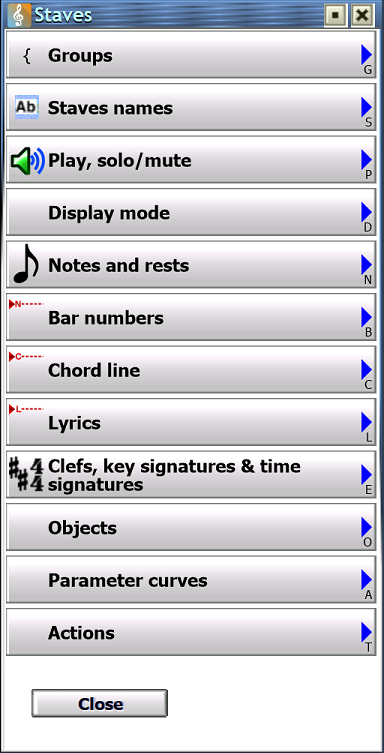
- Groups and Staves: select staves by their group or individually, and a lot of settings and actions applied to all selected staves:
- Staves group name settings
- Names: rename and set font
- Play / solo / mute
- Staves appearance (display mode)
- Rules
- Notes and rests: actions on all symbols of selected staves
- disable/enable Automatic beaming
- Change stems direction: set all stems to auto, up or down,
- Compute beamings and/or stems direction: together, or separately if you don't want to break hand made beams/stems,
- Pressure time of notes with breath symbol (ornament): to help VS have a short rest when breath comma is present, reduce the pressure time, as the default 80% may be too much.
- Bar numberings
- Chords line
- Lyrics
- Quick access to visible clef and key changes
- Objects: dynamics, tempo, ottavas, texts...
- Parameter curves
- Selection:
- Symbols: properties and actions to selected notes and rests.
- Objects: actions on staff objects (dynamics, tempo, textes, pictures...) inside the selection. Color, font, rotation, scale, visible on views...
- Bars: settings you can find in right click menu in the ruler, and ruler's left blue triangle, and some automated tasks on selected bars.
- A Play menu to switch on/off accompaniments, rythms and metronome,
- A Transport tool to quickly jump to, or play music from movement, rehearsal mark (target), break, key change, tempo change.
Palettes are also in menu, to avoid waste of time moving mouse and clicking here and there. If you use it a lot, you can go directly to Palette submenu, skipping the "General" menu, these ways:
- Scripts menu > Miscellaneous > Palettes > Palettes as menu,
- Window menu > Palettes > Palettes as menu,
- an assignd keyboard shortcut you can create in Configuration menu > Edit keyboard shortcuts.
As well for "Selection" menu, a kind of very large extension of contextual menu, there is a shortcut script in Scripts > Notation > Contextual menu and Edit > Contextual menu
.Quick start
Notice: screenshots above may be outdated, the Swiss Knife menu is in permanently updated with new features, that may be missing in screenshots, or have been moved elsewhere.
Keyboard navigation
Here are some way to navigate the menu with keyboard:
- Each item's shortcut is written in bottom right. For example, V for "Views", S for "Score", T for "Staves".
You'll quickly learn some words to access one action, e.g. for English users, SPM for Score > Paper > Margins. - Up and Down arrow key move focus to previous/next item.
- Space key tick/untick the checkbox or radio, turn switches on/off.
- Enter key go into submenu, launch an action, validate a multiple (checkboxes) or single (radios) choice.
- Esc key goes back to previous menu (one level up).
- Shift+Esc exit the menu.
- Ctrl+A to select all checkboxes.
- When asked for a value (litteral, number, XY, font, color), Shift+Enter validate the choice, performs an action, then close all menus.
MIDI device navigation
If you have a Midi device connected, you can use pitch bend, modulation wheel (and other controllers) to
navigate like Up and Down arrows.
If you have a sustain (damper) pedal connected to your device, CC# 64, you can use it as Space key:
it toggle switch, select/unselect checkbox or radio, or perform the action of the menu item.
Graphics
The left icons or texts are decoratives. They have no effect on script behaviour, probably on
mouse-lover humans. 😉
Right icons give more information::
- Triangle: a sub-menu,
- Checkbox and radio: items to select,
- Three dots: open a dialog,
- Switch: green and round at right, feature is enabled. Red and round at left, feature is disabled.
Moving the switch performs an action, e.g. sho/hide somthing on the score, and the score is refreshed. - Nothing (because of lack of idea!): performs an action that is not switchable, e.g. change current view, compute stems direction and beamings, delete something.
Note that they not necessarily popup a "Done" message, action is performed, score is refreshed, and in most of case you continue to browse menu.
Staff selection
Tip: select one, several or all staves before opening the menu > Staves. When it's asked to choose staves to perform some actions, the selected staves in score are pre-selected. You'll just have to press Enter key.
If you want to select other staves, you can press their keyboard shortcuts, or move the focus and press Space.
Ten first staves have 1 to 0 shortcuts.
Empty triangles show unmerged staves, painted triangles show merged staves.
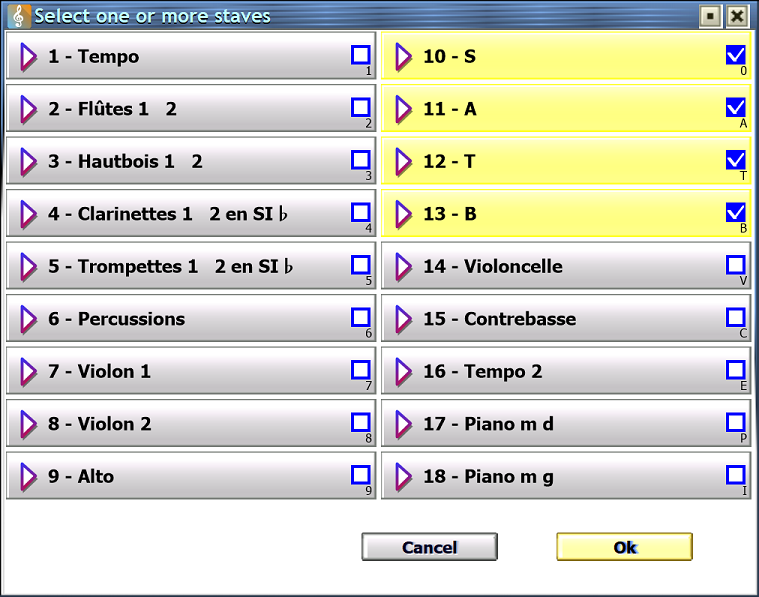
Staves groups selection
Same mechanism than staves selection.
Font selection
Title, composer, staves names, chords line, lyrics, bar numbers... fonts for a lot of objects can be changed using this script.
When you change the font, a sub-menu offers you:
- The global settings > Fonts, for some objects,
- Your favorite fonts,
- Fonts found in the document for similar objects,
- And Choose another font option. It opens the Harmony's font and style selector. Once you clicked 'Ok', you are asked if you want to save as favorite, to retrieve it faster later.
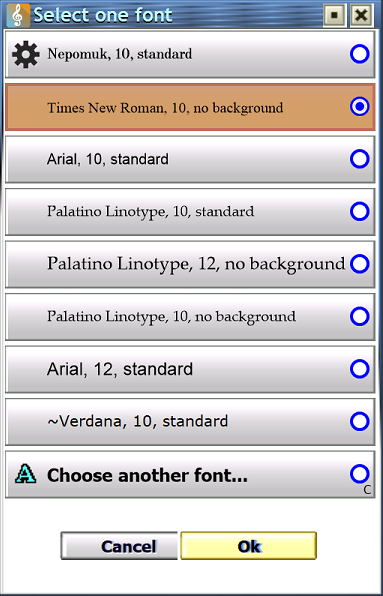
Two steps to have a more professionnal look: select all staves, then launch General Menu > Staves > press Enter > Staves name > Font > pick one of them and press Enter.
Really faster than editing names for each staff one by one!
Music
Global settings for the whole music, not focused on graphical rendition.
Graphical settings are in Score and Staves menu, as they may be different from one view to another.
For each multi-voice staff, or directly for the only one:
Some actions add a specific staff, edit rehearsal marks, change all barline text font, or perform some cleanings.
Tempo and metronome
This staff will contain all tempo change, global texts, rehearsal marks, jumps and targets (D.C., segno, conditional parts...)
for conductor and all individual scores.
This ensure a nice positionning of these elements, never mind the staff below (violin and flute with high notes,
timpani without notes outside staff).
The staff is named "Tempo" and is added to all views, all tempo changes are moved to this staff.
Bar numbers, jumps and targets are made visible for Tempo staff, and hidden for next ones.
Texts are not moved, you have to do this manually for relevant ones (in opera score: curtains open/close, CANTO, movements of actors...)
Rehearsal marks
Breaks
Chord grid
Volume and digital effects
Free objects
Multi-voice staves
Clefs, key signature & time signature
This actions apply to all staves in the score.- Fix clefs visibility: show hidden clef that differ from previous clef, and delete the useless ones (after XML/PDF import or erroneous user action on clefs).
Notes and rests
These actions apply to all notes and rests of the score:- Ghost rests: change ghost rest appearance on all staves, for all views
- Reset horizontal shift: cancel horizontal shift that may have been made unintentionally or notes added when Option > Automatic spacing control was disabled.
Cleaning
Remove unused items, reduce file size:- Delete unused rules: not risky once writing is finished
- Delete unused instruments: not risky
- Delete hidden free objects: some scripts may use hidden free objects to store data, use with caution
- Delete inactive and empty curves: not risky once the performance/audio rendition is finished. An inactive curve with a lot of data may enlarge file size.
- Reset time spent on document when you start working on a copy of a previous document.
Views
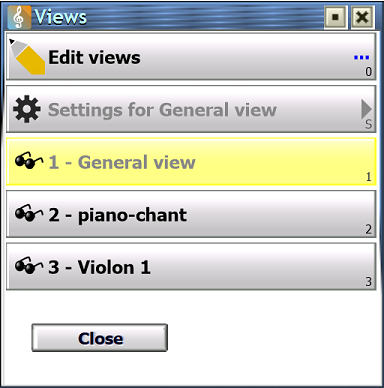
- Edit views: open the standard view editor, to create view, change settings, add staves...
- Settings for [view name]: fast access to view settings, disabled for General View.
- Load & Save view settings presets: save and apply a preset of settings for the current view
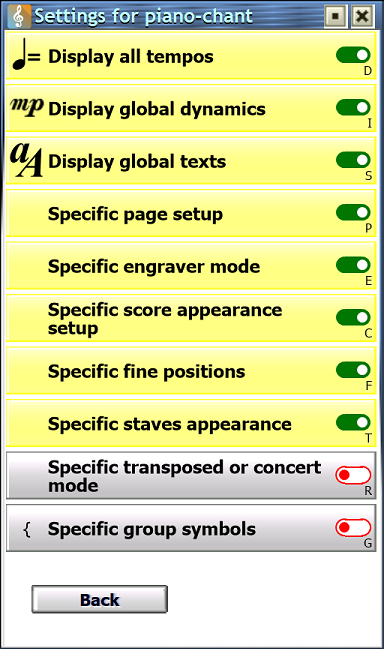
- switches for all settings: display tempo:dynamics/texts, specific page setup, specific score appareance...
- Other items are the views, with shortcut from 1 to 9 for the 9 first views. Select one of them to switch to this view.
Then the menu is closed to work on the selected view.
Note that you are not forced to go to Page Mode to switch view, you can switch from Scroll Mode to one view. ☺
View settings:
Quickly turn on/off settings using keyboard shortcut, or place the focus using Up and Down arro keys, and press Space to change switch position.
Read Views chapter in Harmony Assistant manual.
Score
Appearance of the score, in current view.
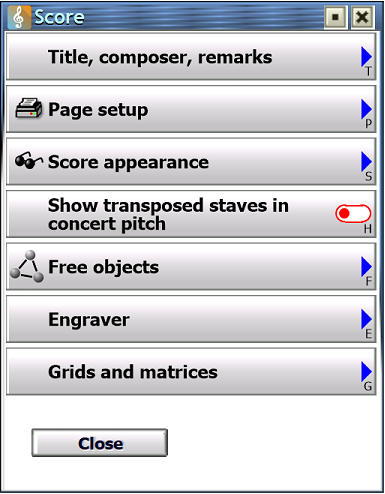
Title, composer and remarks
- Edit: access to standard Edit Title, Composer and Remarks (from File menu).
- On first page: switch to display/hide on first page (printing options).
- 3 sub-menus for each text to change font, alignment and fine positioning,
- Then 3 actions to change author's email, website, and music album title.
Paper area and margins
Paper: set orientation and area.
Note that the paper size/area is common for all views of the document.
It's then impossible to have several sizes (one for printing, one for MyrWeb export) in the same document.
You'll have to work on a copy if you need different paper size/area for MyrWeb export.
- Orientation: default, portrait and landscape orientation is view-specific.
- Paper area: only one paper area for all views. If you need different paper areas, work on copy of the file.
Margins: change margins with real-time preview.
- Load & Save margins presets: save and apply a preset of margin settings
- Top and left margins: both at the same time using 2D plotter with real-time changes on the score,
- Right and bottom margins: idem,
- Invert odd/even pages margins: switch
- First staff left and top offset: also with the 2D plotter and real-time changes.
Heards and footers (2 submenus)
- Edit: as in File > Printing options,
- Load and Save template, the same as the 2 buttons in Edit dialog,
- and all individual settings of this dialog: texts, fonts, margins, lines...
You may think it's a bit repetitive, but you have real-time score changes, and this is compatible with batch processing.
Page setup
A way to change printing options from File menu. Note that a few options have no switch there, moved elsewhere or omited.
- Edit page setup: same as File > Printing options
- Printing scale: the scale (in %) change staves, symbols and texts sizes, but not the free objects.
It displays the height of the 5 staff lines (at default size) in millimeters.
Engraving books recommand heights of 6mm for conductor, 8mm for individual scores, 10mm for drums. - Load & Save systems setup preset: save and apply a preset of settings to staves and systems. Includes settings below: justification, empty staves, multi-rests and multi-repeats...
- Justify bars and staves: bars, bars of last system, systems on the pages, system of last page.
- Empty staves: print empty staves on first system, on next systems, print empty systems.
- and some switches for frequently used options, like 'allow multi-rest bars' you may switch often if you have to fixe something inside multi-rest, force a bar to display, etc.
Score appearance
Score appearance settings are in Score > Display setup menu.
Here you can adjust line thickness, accidental spacing, tie appearance, etc.
Harmony Assistant only allow you to save your settings as default for future new documents.
It lacks a feature to save/load settings after document creation, and for various works.
Here is how I work:
- Write and edit music in general view, scroll mode: I need confortable settings for screen, especially line thickness.
- Views for individual parts: nice appearance settings for printing, for ease-of-read by musicians.
- A view (or a copy of the file) for conductor: a view where staves are smaller than individual parts, and score appearance adjusted.
That's why I added load and save settings features. Enjoy!
Show transposed staves in concert pitch
Your score may contain staves for transposing instruments (clarinet, trumpet).
Individual parts are printed transposed, and generally the conductor too.
Now, if one of your trumpet players say he or she will play on C-trumpet, you have to cancel the transposition to print a specific individual part in concert pitch.
No need to change staff transposition, no need to transpose from the Score menu, the magic option is isolated in... Options menu. I don't know why it's not in Printing options...
So here it is. Switch ON before printing for C-trumpet player, and switch it OFF for other trumpet players. Don't forget to write somewhere that the part is for C or B♭ trumpet to avoid confusion.
Engraver
- an access to Harmony's Engraver setup from Score menu,
- a switch to force or disable automatic bar width. The only way to do this is to open Engraver setting and check "Compute best bar width".
Actions in score top left blue triangle doesn't perform this task.
Reserved pages
- Insert & Delete reserved pages: insert/remove reserved pages, pages before the score.
If the document has free objects, they are moved to stay on the page as before insertion/deletion.
Reserved pages are for free objects. When a page is deleted, it's free objects are also deleted.
Grids and matrices
Show/print or hide ruler, accompaniments matrix, rythms matrix and chord grid.Groups
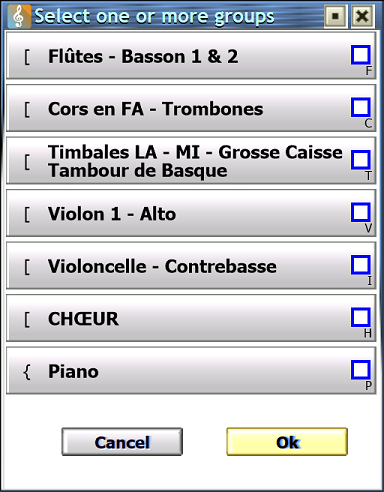
Before displaying the staves menu, instead of asking to select one or more staff, you can select one or more groups.
This then select all staves in selected group(s).
If group has no name/title, then first and last staff names are displayed, e.g. "Flute - Bassoon" for the woodwinds group that contain flute(s), clarinet(s), oboe(s) and bassoon.
Staves
Most of the settings and actions are applied to all selected staves, or their group if available.
This avoid repetitive work on every staff and reduce mistakes.
Some actions, such as edit name and display setup, open a dialog per staff,
this also speed up your work. A click on "Cancel" button stop the process and goes back to the menu.
Groups
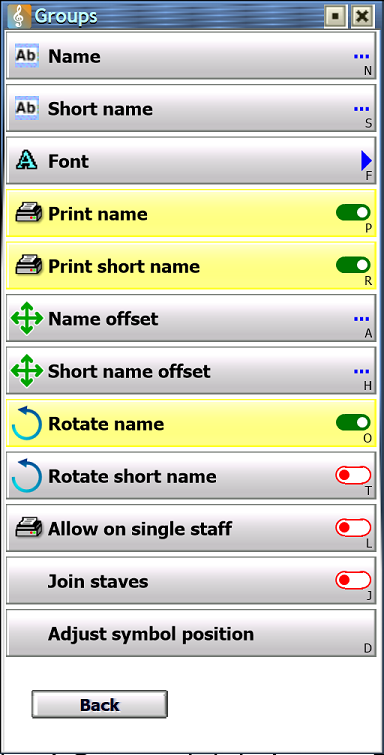
Settings for group name visibility, position and staves join mode.
If selected staves are not in group (brace or bracket), this menu is not available.
- Name and Short name: enter group(s) name. If selected staves are in several groups, each name is aksed one by one.
- Font: same font is applied to full and short name. As all font settings, you can choose between favorites, fonts founds in the document, or a new font.
- Print name and short name: when not printed, the name is kept, but color is white. So your work is still structured in groups like "woodwinds", "Brass"... but hidden.
- Name and short name offset: fine positioning using the 2D plotter and arrow keys.
- Rotate name and short name: switch to rotate 90 degrees.
- Allow on single staff: ON recommanded in orchestral work. When all group' staves but one are empty and hidden, print or not the symbol (brace, bracket).
- Join staves: a switch to join or not the staves by vertical lines at each bar.
- Adjust symbol position: experimental. Try to adjust braces and brackets position.
Staves names
- Name and Short name: change name and short name for each selected staves, one by one.
- Print name: never, first system only, always.
- Font and position: like for groups.
- Copy stave name to instrument name: self-explainatory.
Play, solo/mute
- Mute: mute selected staves.
- Solo: mute all staves but selected ones.
- Coming soon: change volume of all selected staves' instruments
- Reset: reset reset mute/play state of all staves.
Display mode
- Print staves: add/remove the staves from the current view.
- Hide if empty: in File > Printing options, if hide empty staves is ticked, you can exclude some staves from this hide process by switching it to ON.
- Edit display mode: the same as staff black triangle menu > Display mode. If several staves are selected, then one dialog is open for each staff. Then menu is closed.
One major difference from the black triangle menu, is that, in case of merged staves, you know wich staff you are editing. You don't need to unmerge, edit, and merge.
Note that in the case of merged staves, the printed staff follow the first voice only. - Ghost rest: choose how to display ghost rests. I recommand to display with real rests, this show you missing note durations to fill the bar.
- Ambitus: display ambitus. In Harmony, we need to tick this in two places: staff display settings, and score display setting. It's done here in one shot.
- Hide jumps and targets, hide barline textes: new options in Harmony v9.9.8.
In earlier version, it was at printing option level, all staves or only first, but you may want to see conditional parts at the top of each group of a conductor score, at piano right hand. So, hide it for piano left hand, and for second and next staves of each groups. - Background and line colors: while writing, it may help you to focus on some staves, e.g. the singers
between viola and cello on a orchestral score. Once score written, and at least in
views, set the colors to white and black.
Colors may also help your choir's members in Melody Player / MyrWeb, they can focus on their color.
Colors can be stored as favorite, e.g. to re-use the same for Soprano on all your scores. For quick use, save also white and black in favorites. - Force auto stem direction: little known feature, you can force the direction of stems (when set to auto), useful for 2 voices merged in one staff.
- Extend graces stem to the middle of the staff: engraver books say that notes stem should always be extend to the staff center, but not graces stem.
Area and vertical positions
Adjuste staff area (height) and vertical positions for staff lines, bar numbers, chord line and lyrics.Values are expressed in 72-dpi, displayed also in millimeters.
Rules
- Rule name display: change the setting for all rules,
- Remove unused rules: quickly removed unused rules. Very useful when a drum staff is fully written, you can here remove the rules and the unused instruments to reduce file size and for better mixer lisibility.
- Edit rules dialog.
Notes and rests
- Automatic beaming: since HA 9.9.9e, the automatic beaming can be disabled per staff.
Once staff is full written, with automatic beaming enabled, disable it, manually change/fix beamings where needed, and you are sure that your handcrafted beaming won't be broken whil writting other staves.
You can also disable automatic beaming for lyrics, which is the most common practice, even if nowadays beamed notes are accepted for lyrics. - Change stem direction: force the stem direction auto/up/down for all notes of the selected staves.
- 3 actions to compute stems and/or beamings: if they break all the beamings you manually adjusted, close the menu by Shift+Esc and go to Edit > Undo.
- Pressure time of notes with breath comma: quickly change the pressure time of all notes having the breath comma, for Virtual Singer or woodwind instruments performance.
- Reset horizontal shift: cancel horizontal shift that may have been made unintentionally or notes added when Option > Automatic spacing control was disabled.
Bar numbers
- Staff with bar numbers: enable or disable bar number display.
- Bar numbers settings: the staff black triangle menu > Bar numbers display. Open one dialog per selected staff.
- Font: change bar numbers' font for all selected staves, with same mechanism as other font (favorites...).
- and some settings applied to all selected staves in one shot: first bar of each line only, after the keysignature, etc.
Chord line
- Staff with chord line: enable/disable
- Chord line settings: staff black triangle menu > Chord line display
- Edit as text: edit chords as text. One dialog open per selected staff.
- Font, alignment and show frames
- Edit title: the title is a short text on the left of the chords. Edit the title and choose font.
- Title font
- Hide chords: chords can exist but may be hidden, e.g. you write lyrics in a free object outside the staves, chords are played by an instrument but hidden...
Lyrics
Similar to chord line settings: enable/disable, edit, font, alignment, frames, title and visibility.
Lyric specific settings and actions available:
- Sing lyrics: enable/disable the selected staves' singer, same as right click on each singer.
- Lyrics language: select the Virtual Singer language and apply it to all selected staves in one shot.
- Edit Virtual Singer voices: for each staff, open the voice selector/editor.
- Number of visible lyric lines: experimental, quickly set n lines visible, hide the next ones.
May be hazardous on complex scores, with conditional parts in repeats.
Clefs, key and time signatures
This menu reveals hidden clefs, keys and time changes. You can then jump (select the bar)
to visible or hidden clef/key/time.
This may be very helpful to "debug" a MusicXML import and save you some headaches!
Automated debugging tools show hidden clefs and deletes useless clefs
Objects
Objects are dynamics, tempos, piano sustain pedals, ottavas, chord diagrams, texts, graphic lines, pictures and FX.
Here you can change settings and perform some actions on them.
Only present objects are available. e.g. if there is no Tempo in the selected staves, the tempo menu is disabled.
- Hide dynamics, ottavas, tempos & pedals: a single option hide all them.
- For dynamics, tempos, ottavas and pedals:
- Apply to staves: staff only, merged staves, group, whole score.
- Print: switch between printed and not.
- Display on view: choose view(s) where objects are printed.
- Scale and Hairpins height
- Font: when applicable, change font of all objects of selected staves.
- Color
- Rotation, except for tempo.
- Select: select all objets of selected staves.
- Hide texts
- For texts:
- Display on view: choose view(s) where objects are printed.
- Font, Color and Rotation
- Erase background
- and Select
- Hide graphics (lines, pictures)
- For lines and pictures:
- Color
- Layer (background, between staff and symbols) or foreground
- Erase background
- and Select
- Hide chord diagrams
- For chord diagrams:
- Colors (lines, fingers and texts): disabled for HA 9.9.9i
- and Select
- Hide FX processors
- For FX Processors:
- Font and Color for text (FX title)
- and Select
- ... in future version: ensure object are in staff area, not overlapping another staff.
Parameter curves
To understand what are parameter curves, read the Parameter curves chapter of Harmony Assistant manual.
- Choose curve to display: select one if list (40+ parameters including MyrSynth Guitar), it's then displayed on all selected staves. Common curves are velocities, delay and pressure, volume and all FX processor parameters.
- ACtive curves: list of existing curves where you can quickly disable/enable their interpretation. Curve datas are not removed.
- Delete disabled curves: if you disabled curves from the previous item, and don't want them any more, you can delete them in one shot. This may reduce the .myr file size.
- Delete empty curves: delete created but empty curves, no file size reduction.
Actions
Unsorted actions and features go here. To be extended.
Split
Split selected staves in several ways:
- Split chords on multiple staves: call the script Notations > Notes > Chord split.
Useful if you have 2 soprano voices on the same staff and want to explode it into Soprano 1 and Soprano 2. - Split according to stems direction.
Selection
The "Selection" sub-menu can be accessed directly by Scripts > Notation > Contextual menu.
This is a kind of very large extension of the right click menu on the ruler, on note.
Assign it a shortcut, or add it to custom palette for quick access, because it won't launch on right click nor computer keyboard Context menu key.
Symbols
Some features have a "magic wand" algorithm. It tries to do the best according to engraving practice.
For example, "Auto" stems directions is a simple algorithm that computes each time a note is inserted, moved or deleted.
The magic wand" algorithm can only compute once music is written, on selected symbols.
If you insert, move or delete symbols, you must launch once again the magic wand algorithm.
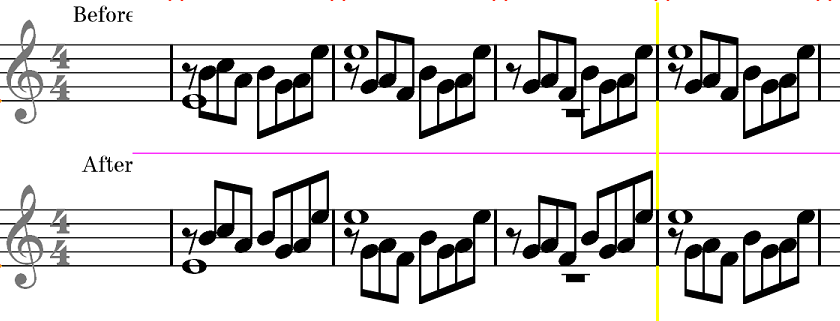
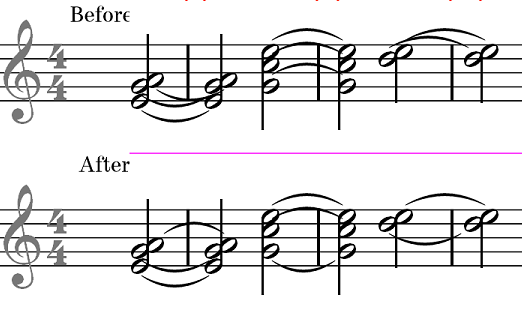
Rules
If selected symbols are on the same staff that contains rules, user choose a rule and it is applied to selected symbols.Stems
- Stems direction: automatic, up, down, and magic wand.
- Beam on beats: beam according to the properties of time signature (open and close scissors, beam eights by four...).
- Beamed with next symbol ( only for individual selection).
- Beam all symbols (only for range selection).
- Reset stem height.
Head
- Toggle invert head
- Reset horizontal shift: cancel horizontal shift that may have been made unintentionally or notes added when Option > Automatic spacing control was disabled.
- Color: pick a color from favorites, add a new color to favorites, then apply rules if any.
- Shape: pick a head shape in an ergonomic dialog, apply it to notes, then apply rules if any.
Accidentals
These features try to apply to microtonal accidentals, which are technically "ornaments".- Enharmonic: change note accidental without changing the pich. Select between Auto, double flat, flat, natural, sharp and double sharp.
Microtonals not handled. - Toggle cautionary accidental.
- Toggle parenthesis around accidental. Microtonals not handled.
- Toggle accidental visibility.
- Horizontal shift: user enters a numeric value.
Dot
- Toggle vertical inversion.
- Reset dot position (vertical and horizontal shifts).
Ties and slurs
Reminder: a tie is one symbol splitted graphically in two or more notes, duration is the sum of all these notes. It's less flexible than slurs which joins two distinct notes, but as there can't be two slurs on same note, ties are sometimes essentials.
Slurs are curves or lines that join two notes, adjacent or not, which fit various purposes:
- Phrasing: such as melisma, coulé, phrasé that tells the musician to play legato,
- Glissando or slide: various notations and kinds of execution, depending on instrument capabilities,
- Cluster: if two notes in chords are joinged by a slur,
- Graphical only,
- and the same than tie, with more engraving flexibility.
- Tie direction: normal (=opposite to stems), inverted (on stem side), up/down (regardless stems), and magic wand.
- Tie notes with slur: join all contiguous notes of same pitch and displayed height, with a "smooth" played slur, results in one played note which duration is the sum of all slurred notes.
- Add a legato (Phrasé) from first to last selected notes.
- Add glissando: user choose interpretation and in some case display of the glissando.
All selected notes are joined. I've seen two notations:- One wavy line: for monophonic instrument (winds) and singers,
for single note or chord on keyboard (been played by sliding all fingers or sliding the side or back of the hand, according to the weight of the keys)
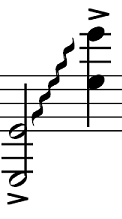
Wavy line glissando between two chords on piano staff. - Solide line:: one per note in the chord, for smooth glissando on violin.
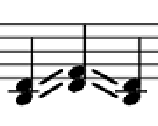
Solid line glissando.
- One wavy line: for monophonic instrument (winds) and singers,
for single note or chord on keyboard (been played by sliding all fingers or sliding the side or back of the hand, according to the weight of the keys)
- Glissando audio settings: Start delay, start speed ratio, relative power, , progressive power.
Tuplet
Toggle (switches) tuplet display settings:- Full display: 3:2 vs 3
- Bracket visibility,
- Number visibility,
- Beaming,
- Side: near not heads, or near stems.
Objects
Objects are dynamics, tempos, piano sustain pedals, ottavas, chord diagrams, texts, graphic lines, pictures and FX.
Here you can change settings and perform some actions on them.
Only present objects are available. e.g. if there is no Tempo in the selected staves, the tempo menu is disabled.
If there is only one kind of object in the selection, "Objects" submenu is replaced by the submenu for the unique kind of object found, e.g. : "Dynamics". Less menu exploration, productivity boost ;)
- For dynamics, tempos, ottavas and pedals:
- Apply to staves: staff only, merged staves, group, whole score.
- Print: switch between printed and not.
- Display on view: choose view(s) where objects are printed.
- Scale and Hairpins height
- Font: when applicable, change font of selected objects.
- Color
- Rotation, except for tempo.
- Select: select "individually" all objets in the range selection. Same as Edit menu > Select.
- For texts:
- Display on view: choose view(s) where objects are printed.
- Font, Color and Rotation
- Erase background
- and Select
- For lines and pictures:
- Color
- Layer (background, between staff and symbols) or foreground
- Erase background
- and Select
- For chord diagrams:
- Colors (lines, fingers and texts): disabled for HA 9.9.9i
- and Select
- Hide FX processors
- For FX Processors:
- Font and Color for text (FX title)
- and Select
- ... in future version: ensure object are in staff area, not overlapping another staff.
Bars
Settings and actions are applied to all selected bars, in current view, available only if selection is a range.
Width (scale)
Changing the width is like dragging the edge of bar, in the ruler.
The manual dragging ask confirmation to disable bar width computing,
this item is only available if engraver mode doesn't compute bar width.
To enable it, go to engraver mode setup (Ctrl+Shift+E) and uncheck "Compute best bar width", or manually drag a bar edge and confirm.
To cancel manually set bar widths, go to Swiss Knife menu > Score > Engraver and check "Automatic bar width".
Margins
- Load and save margin model, to save and recall easily your prefered margins settings.
- Left and Right: enter a number or change it using the arrow keys, left/right click, and view in real-time the changes.
- Clef, key and time signature: auto-width switch, and manual number edit, with real-time preview.
End of line or page
- End of line after this bar: switch available for selection of one bar, deletion available for a range of selected bars
- End of page after this bar: switch available for selection of one bar, deletion available for a range of selected bars
- Never end of line after this bar: switch available for selection of one bar, deletion available for a range of selected bars
- Don't split %2- and %4-bars repeats, these should be never splitted.
- End of line before rehearsal marks, locates them always at first bar of a system.
Split multi-measures
Multi-rests and multi-repeat are splitted in some case (e.g. tempo change, special bar line),
but some cases are not handled, such as rehearsal marks.
You may also want to define your custom split.
In interface, the "Split multi-rests" in ruler right click menu is always after the clicked bar,
so you have to click one bare before the rehearsal mark or whatever you want to display.
That's why the Swiss knife menu allow you to split before or after the selected bar :)
- Split multi-rests before this bar: available for selection of one bar
- Split multi-rests after this bar: available for selection of one bar
- Delete 'Split multi-rests': available for a range of selected bars.
Bar numbers visibility
- Force display and Never display bar number: available if only one bar is selected,
- Delete 'Force display' and Delete 'Never display': available for a range of selected bars.
- Force number display after multi-rests: in a score with a lot of multi-rests or long multi-rests, it is recommanded to force bar number display after multi-rests. This item performs that on selected bars.
- Hide numbers at rehearsal marks: the above action may display bar number at the same place than a rehearsal mark, this action removes these unwanted numbers.
Forced numberings
Forced numberings allow you to restart numberings from 1 (or whatever you want using the ruler's right click menu), and skip some bars in numberings, e.g. a normal-sized bar divided in two by a clef change inserted in the middle, resulting in two half-sized bars, with invisible barline, and only one is numbered.
Notes spliting
In 99,99% of cases, barline split notes that spread over two bars.
In some rare case, when an invisible barline split a bar in two (e.g. to insert a clef change),
you may need to keep the notes unsplitted.
Copy global bar settings
: Run the script in Notation → Bars. This script copies settings from a range of bars to another range of bars, in same or another view.This is intended to gain time when you changed settings (margins, end-of-line) for an excerpt, and later in the score there is a quite similar excerpt.
Printed bars
Allow you to define the first and last bar to print to first and last selected bars, or default values 1-9999Breaks, barline, coda...
- Font for barline texts
Play
Here are self-explanatory actions:
- Play/Stop music
- Enable/disable Virtual Singer.
When disabled, lyrics are not sung at all. When enable, staves with 'Sing lyrics' flag are sung. - Play/Mute accompaniment, rythme and metronome.
Transport
Here is a powerful tool to move the focus (selection) or play music at a remarkable bar: movement, rehearsal mark, break, time signature change...
The top part of the menu offer actions to do when you'll "jump". You can choose one or several.
The choice is stored in the document.
- Select the bar, by default
- Play from bar
- Set play mark: future play will start from that bar.
The bottom part of the menu let you choose where to jump:
- Movement: first bar of a movement, if score has movements,
- Target: rehearsal/structure marks,
- Break or barline: by nature, they structure the music,
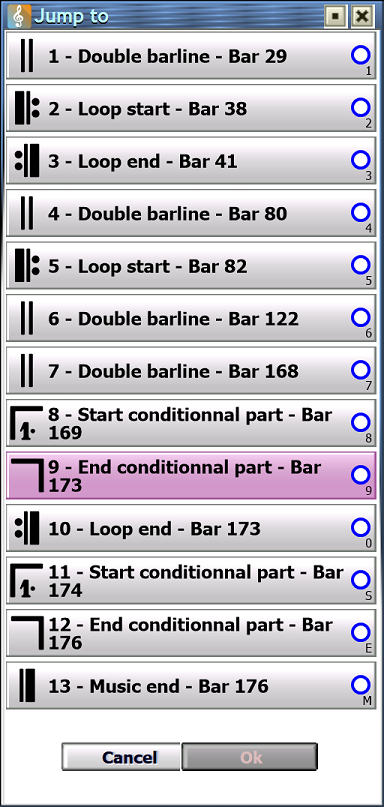
The structure of a piece. - Time signature: a change of time signature is probably a remarkable point in the piece,
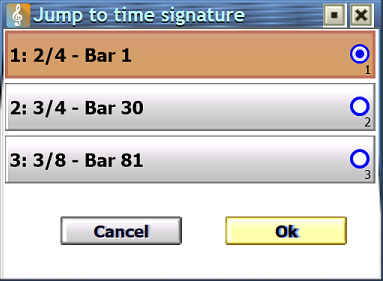
Time signatures in the piece. The first is selected because the cursor is at this bar. - Key signature: like time signature, changes are probably bar of interest,
- First and last bar.
- Enter bar number, same as Ctrl+Shift+M, but performs one or more of the actions.
Palettes
You may say "why? there are shortcut for every palette buton!" and you'll be right.
But you'll have to memorize a lot of shortcut, and keyboard have not enough keys.
By this menu, you can memorize short words to pick the tool you need.
I arranged palettes to minimize the number of items, and group together tools that many user search always in the wrong palette, even after years of practice.
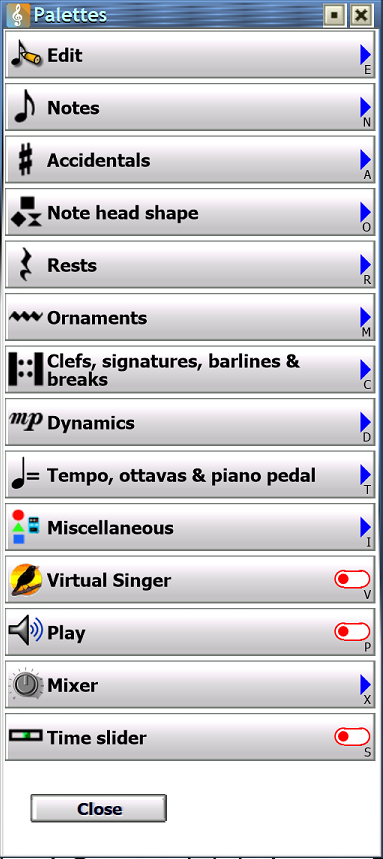
- Edit: no surprise here, add, inject, select, erase and try.
- Notes: all note length. Shortcut for tuplet is 3, and Ctrl+3 to edit tuplet values, this is equivalent of double click on the tuplet icon.
- Accidentals: no surprise
- Note head shape: 3 for triangle, 4 for diamond, x and modifiers for crosses...
- Rests: no surprise.
- Ornaments: the 3 ornament palettes are grouped together, and only one ornement is selectable at the same time, i.e. the 2 other ornament palettes are reset.
Ornaments are grouped into families to reduce menu size, and find them easier:- Texts & graphic,
- Volume: rise, release, and both,
- Trills: normal, flat, sharp and natural trils,
- Mordants & grupettos: upper and lower, simple and double mordants, and the two grupettos,
- Tremolos: groups of 8ths, 16ths, 32nds and 64ths are tremolos on same note, and the "w"-like ornament,
- Vibratos,
- Fermatas & pauses: high and low fermatas in several shape (normal, arc, square), breath and grand pause,
- Guitar ornaments: slides, hammer on, pulling off, Dadi's picking, golpe, strumming, mediator...
- Harmonics,
- Violin ornaments: down bow and up bow,
- Drums: right/left hand, and some ornaments not known for that in Harmony, but that seem to be commonly used in drum score writing, such as crash ride, choke crash, let ring, closed hi-hat, rolls...
- Tenuto, staccato, marcato: most frequent articulations, not in a sub-menu,
- Articulations: all other articulations like staccatissimo, portato (mezzo-staccato), marcato tenuto...
- Fingerings: numbers and pimac notation.
- Clefs, signatures, barlines and breaks: all these structure the piece, so they are grouped.
- Dynamics: with nice shortcut, P for piano, Shift+P for pianissimo...
- Tempo, ottavas & pedals: with the tempo icon clearly visible. In the master palette, this palette icon is the Ped. so everybody search where is the tempo tool.
- Miscellaneous: slurs, special beaming, and objects related to staff (text, line, image, FX...)
- Virtual Singer: switch to show/hide VS tool.
- Play: switch to show/hide Play palette.
- Mixer: submenu to choose complete mixer (with knobs and VU-meters), stage view, or hide.
- Time slider: switch to show/hide this tool.
- Other palettes by script: shortcut to useful scripts that open a floating window. Once a script is opened, the menu is closed.
Settings
Language
The Swiss Knife menu is available in English and French. Default language is the one
used in the application.
If you are Italian or Spanish or ..., you can force to the one your understand the best.
Note that the language setting also apply to my other scripts which are always, at least, in French and English, but some of them may rarely have more translations. If you force English or French, you may miss those translations.
Accessibility - Screen reader
Visually impaired users can select a system voice that will tell them what happen in my scripts
- Alerts, messages and questions (confirmations),
- Focused or hovered button caption,
- Focused or hovered component type and value, e.g. "Blah blah, radio button, unchecked".
Well sighted users may not need this, but the option "only if HA is in background" may be a good choice to receive audio alerts when one script has very long execution time and you decide to do something else in another app, or if you have a script that accept MIDI device inputs and you are copying a score from a scanned PDF, using your MIDI keyboard, and the PDF reader application is in foreground.
You can customize some settings like speech rate and frequency.
Note for Windows users, the speech rate has strange values. Try a value between 200 and 350, even if the displayed value is higher when you change this setting.